
Imagine this scenario: you run an accounting firm, legal consultancy, or design agency. After onboarding a new client, you generate a confidential proposal containing pricing and banking information, then upload the PDF to your WordPress website. Naturally, the file is not linked on any public page or navigation menu. In fact, you might even embed the download button behind a password-protected page.
At first, everything seems completely safe. However, serious problems arise when a client copies the download link and accidentally emails it to the wrong recipient. Or an ex-employee opens their browser history on a shared laptop. Or worse: a search engine bot indexes the file, making it discoverable on Google.
With one click, anyone in the world can open, read, and download that confidential file—without ever logging into your WordPress website.
Here is the uncomfortable reality that surprises most website owners: WordPress does not keep media uploads private out of the box.
In this comprehensive guide, we will examine the technical architecture of how WordPress serves media files, bust the most dangerous myths about media privacy, and explain how to achieve true private file access in WordPress using User Private Files (UPF).
The 60-Second "Incognito Test" (Try This Right Now)
Before diving into the technical details, you can verify this vulnerability on your own site in less than a minute:
- Log into your WordPress dashboard and navigate to Media > Library.
- Click on any sensitive PDF, document, or client file you have previously uploaded.
- In the attachment details sidebar, copy the File URL (it will look like https://yoursite.com/wp-content/uploads/2026/11/confidential-doc.pdf).
- Open a completely new Incognito / Private Browsing window (where you are 100% logged out of WordPress).
Paste the copied URL into your address bar and hit Enter.
Did the file download or open immediately in your browser?
If it did, your file is completely public. Anyone who discovers, intercepts, or guesses that URL can view your sensitive business data without providing a username, password, or authentication token.
To understand why this happens, we have to look under the hood at how WordPress and web servers work together.
The Technical Reality: Why WordPress Leaves Uploads Exposed
To understand why default uploads leak data, we must differentiate between how WordPress serves web pages versus how it serves static files.
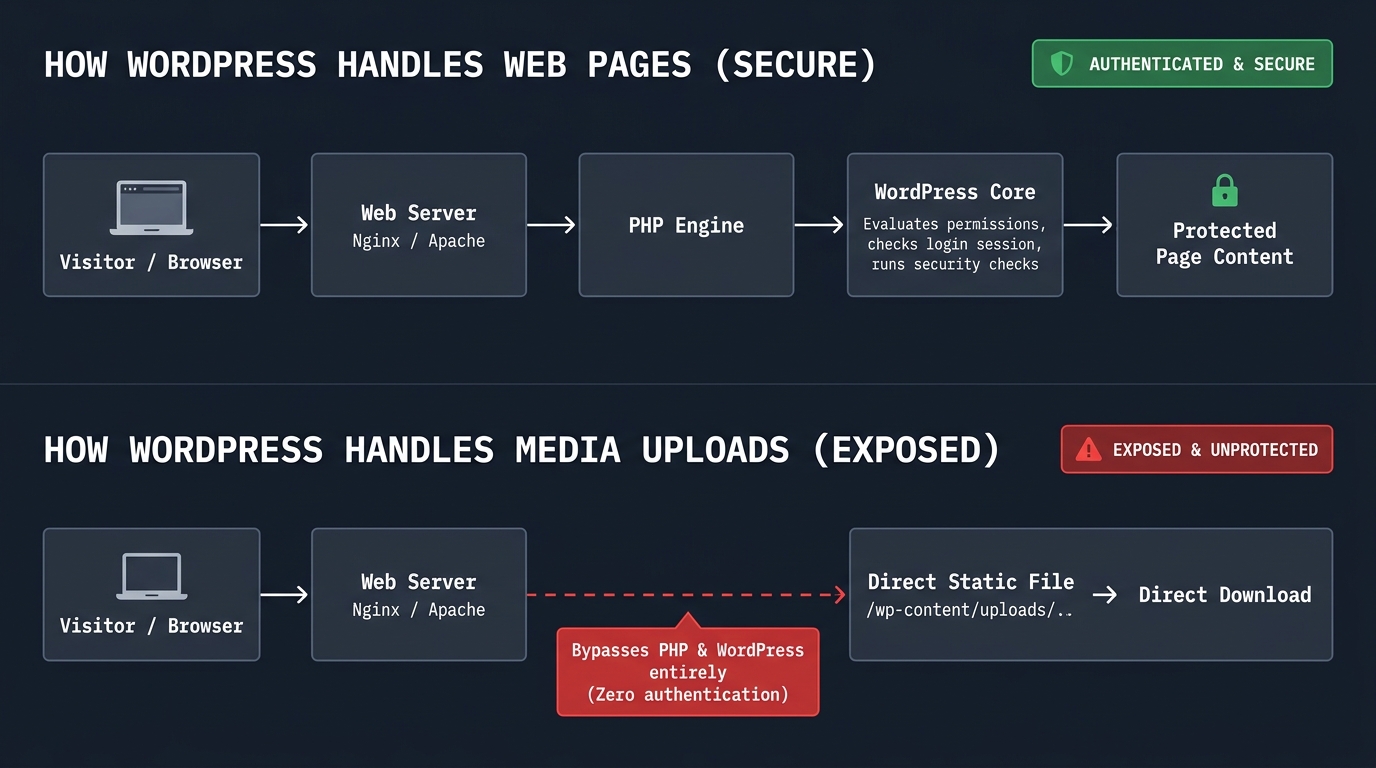
The PHP vs. Static Asset Bypass
When someone visits a blog post (https://yoursite.com/my-post/), your web server (Apache, NGINX, or LiteSpeed) hands the request over to PHP. PHP boots up WordPress, checks if the user is logged in, validates their user role, queries the database, and decides whether to display the page or show an access denied error.
However, when a browser requests a static file inside wp-content/uploads/ (such as a .pdf, .zip, .docx, or .jpg), the web server bypasses PHP and WordPress entirely.
Web servers are engineered to serve static files as quickly as possible. When a request asks for a file ending in .pdf, the server simply reads the file from disk and streams it directly to the browser. WordPress core never even wakes up. Because WordPress never runs, it cannot verify if the visitor is logged in, let alone check their permissions.
Predictable File URL Structures
By default, WordPress organizes uploads chronologically:
https://yourdomain.com/wp-content/uploads/YYYY/MM/filename.pdf
If an attacker, competitor, or curious visitor knows you uploaded an invoice in November 2026, they already know the first 80% of the URL path (/wp-content/uploads/2026/11/). If filenames follow predictable conventions (like invoice-101.pdf, contract-smith.pdf, or proposal-v2.pdf), automated bots can scrape hundreds of documents in seconds.
5 Dangerous Myths About WordPress Media Privacy
Many site owners believe their documents are safe because they follow common workarounds. Let’s address why these popular methods provide false security:
Myth 1: "I didn’t link to the file on my site, so nobody can find it."
Reality: You don’t need to link to a file for it to leak. URLs leak through:
- HTTP Referrer headers: If a client opens an unlisted PDF in their browser and clicks a link inside it to an external site, that external site’s analytics logs the complete source URL.
- Browser extensions & autofill: Many third-party browser extensions catalog visited URLs.
- Shared networks & logs: Intermediate proxies, public Wi-Fi networks, and corporate firewalls record all unencrypted web traffic URLs.
Myth 2: "My page is password-protected, so the files on it are protected too."
Reality: Password-protecting a page or putting it inside a membership plugin only restricts access to the HTML of that specific page. Once an authorized member loads the page, right-clicks the download button, and copies the link, that link becomes completely public. The underlying file in wp-content/uploads/ remains unshielded.
Myth 3: "Search engines won't index files if I don't submit them."
Reality: Googlebot and Bingbot actively discover unlisted files through sitemaps, RSS feeds, inbound trackbacks, and browser usage data. If Google indexes just one PDF containing sensitive client information, that document can appear in public search results indefinitely.
Myth 4: "I renamed the file with random letters and numbers."
Reality: Obfuscating filenames (e.g., invoice_98x7a2bf91c.pdf) is "security through obscurity." While it prevents simple brute-force guessing, it does not stop the URL from leaking via browser history, email forwards, or server logs. If someone obtains the link, they have permanent, unrestricted access.
Myth 5: "My caching plugin and CDN keep everything secure."
Reality: Content Delivery Networks (CDNs) and aggressive edge-caching actually exacerbate the problem. When a public file URL is requested, CDNs distribute copies across global edge nodes, caching them publicly and making unauthorized direct downloads even faster.
The Real-World Stakes: Why Businesses Need True Private File Access
For hobby bloggers sharing vacation photos, public uploads are harmless. But if your WordPress site handles real business documents, leaving files unprotected creates serious liabilities:
Accounting & Tax Firms: Leaking client tax returns, W-2s, profit-and-loss statements, or bank account details can result in devastating identity theft and legal action.
Legal Consultancies: Exposing non-disclosure agreements, litigation briefs, or intellectual property filings breaches attorney-client confidentiality.
Healthcare & Medical Services: Storing patient records, test results, or intake forms in public directories violates strict data privacy standards like HIPAA in the United States and GDPR in Europe.
B2B Agencies & Freelancers: Having a client discover that their confidential marketing strategy or proprietary code deliverables are publicly downloadable destroys professional trust instantly.
To protect your business and your clients, you must transition from default public uploads to true wordpress private files.
How User Private Files (UPF) Solves the Direct Access Problem
User Private Files is built specifically to address the architectural security gap in default WordPress uploads.
Instead of relying on surface-level visual tricks, UPF introduces a multi-layered security architecture that enforces authentication before a single byte of data leaves your web server:
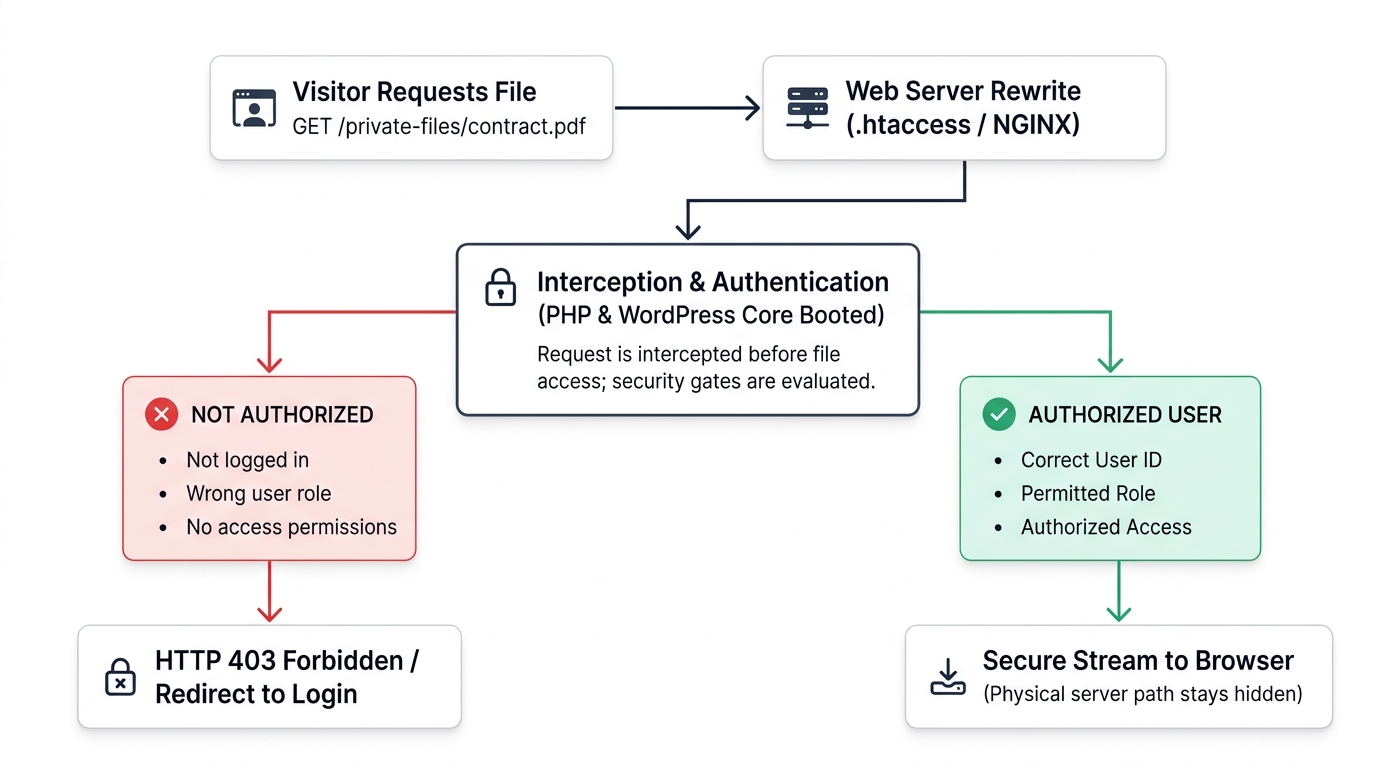
1. Server-Level Request Interception
When you activate User Private Files, the plugin configures server-level rewrite rules (via .htaccess on Apache and LiteSpeed, or straightforward configuration blocks for NGINX).
These rules instruct your web server:
"Whenever a request comes in for any private file, DO NOT serve it directly. Route the request through WordPress security checks first."
2. Deep Authentication & Role Validation
Before the file is delivered, the plugin evaluates several security checkpoints:
Session Check: Is the visitor currently logged in?
Ownership Verification: Does the requested file belong to this specific user’s private vault?
Role-Based Permissions: Does the user possess a role (e.g., Administrator, Staff Manager) permitted to access this asset?
Shared Privileges: Has the file been explicitly shared with this user’s email or role?
If the user fails any of these checks, the server halts execution and returns a strict 403 Forbidden error or redirects the visitor to your login page.
3. Isolated User Directories (Sandboxing)
User Private Files isolates each user's assets. When User A logs into their frontend dashboard, they only see and interact with User A's private folder. They cannot browse, view, or even detect the existence of User B's files.
4. Non-Destructive In-Browser Workflows
With features like the built-in PDF signing add-on , users can review, sign, and organize documents directly inside their browser. Files are kept within the authenticated environment throughout their entire lifecycle, eliminating the need to download files to insecure local drives.
Free vs. User Private Files PRO: Security Feature Comparison
| Security & Management Feature | Free Version | User Private Files PRO |
|---|---|---|
| Server-Level Direct URL Interception | ✅ Yes | ✅ Yes |
Frontend User File Manager ([upf_manager]) |
✅ Yes | ✅ Yes |
| User-Specific Folder Sandboxes | ✅ Yes | ✅ Yes |
| Role-Based Access Controls | Basic | ✅ Advanced (Specific to role) |
| Precise Document Sharing | Basic | ✅ Advanced (By email/role/group) |
| Automated Premade Folders for Clients | Limited | ✅ Full Automation |
| In-Browser PDF E-Signatures | ❌ No | ✅ Yes (Draw, Type, Upload) |
| AI-Powered Semantic Search & Agent | ❌ No | ✅ Yes (Zero file exposure) |
| File Auto-Deletion on Expiration Date | ❌ No | ✅ Yes |
For agencies, legal teams, and businesses managing confidential data, upgrading to User Private Files PRO ensures your document infrastructure meets strict privacy standards.
Step-by-Step: Securing Your WordPress Media in Under 15 Minutes
Securing your site’s confidential files with user private files wordpress setup does not require custom code or complex server administration. Follow this quick implementation walkthrough:
Step 1: Install User Private Files PRO
- From your WordPress dashboard, go to Plugins > Add New > Upload Plugin.
- Upload the user-private-files-pro.zip file obtained from your account.
- Click Install Now, then click Activate.
- Enter and activate your license key under User Private Files > License Settings.
Step 2: Verify Server Rewrite Protection
Once activated, navigate to User Private Files > Settings > General:
- Ensure that file protection is toggled ON.
- Select the allowed upload extensions (e.g., PDF, DOCX, XLSX, PNG, ZIP).
- Set your maximum allowed file upload limits.
UPF automatically writes the necessary protection rules to your .htaccess file. (If your server runs on NGINX, the settings panel provides clean rewrite directives to include in your server configuration block).
Step 3: Establish Role Permissions
Under the Permissions / Roles tab:
- Define which user roles can access the file manager.
- Specify whether clients can upload new documents, create custom folders, or download existing files.
- Disable file deletion privileges for clients to ensure historical records, invoices, and signed contracts cannot be deleted accidentally.
Step 4: Publish Your Frontend Client Portal
Provide your clients with an intuitive, branded dashboard that keeps them away from the WordPress wp-admin back end:
- Navigate to Pages > Add New.
- Title the page Client Portal or My Documents.
- Add a standard shortcode block and enter: [upf_manager]
- Set the page template to Full Width and click Publish.
Step 5: Test Your Protected URLs
Perform the Incognito Test once more:
- Upload a test document inside the UPF file manager.
- Copy its direct file link.
- Open an Incognito window and paste the URL.
- You should be greeted with a 403 Forbidden response or redirected straight to your login page.
Your files are now genuinely private!
Frequently Asked Questions (FAQ)
Does User Private Files store files out of the default wp-content/uploads folder?
Yes. User Private Files stores private documents in dedicated, protected storage paths shielded by server-level rewrite rules. This ensures they cannot be accessed through standard media library URLs or indexed by web scrapers.
Can search engines index files stored inside User Private Files?
No. Because search engine spiders (like Googlebot) crawl the web without user login credentials, any attempt to access a protected file URL results in a 403 Forbidden or redirect, preventing search engines from indexing the document.
Will protecting my media files slow down my website?
No. UPF is engineered to be lightweight. The security check executes only when a private file URL is requested. Your public marketing pages, blog posts, and theme assets load with zero performance impact.
Can I share a private file with multiple specific users without making it public?
Yes! With User Private Files PRO, you can click on any file or folder and share it with specific users by email address, or make it accessible to an entire user role (such as "Staff" or "VIP Clients") while keeping it completely invisible to everyone else.
Conclusion: Take Control of Your Media Security Today
Your clients trust you to handle their confidential agreements, financial records, and proprietary deliverables with care. Relying on default WordPress uploads—where every file URL is public by default—is an unnecessary risk that can compromise client trust and expose your business to severe data privacy liabilities.
By switching to true wordpress private files with User Private Files, you close the direct URL access loophole permanently. In under fifteen minutes, you can turn your WordPress website into a fortified, self-hosted document portal where every file is authenticated, isolated, and strictly controlled.
Ready to protect your client documents and put an end to direct link leaks?