
PDF documents are the universal standard for modern business. Whether you are sending client onboarding agreements, freelance proposals, non-disclosure agreements (NDAs), invoices, real estate contracts, or student registration forms, chances are you rely heavily on PDFs every single day.
However, if you manage documents through a WordPress website, getting those PDFs signed is often a clunky, frustrating hassle:
- You or your client download the PDF to a local computer.
- You open external software like Adobe Acrobat, Preview, or DocuSign.
- You create and apply the signature.
- You export and save the signed version.
- You log back into WordPress or open your email to upload and return the file.
This back-and-forth friction delays deals, frustrates clients, and scatters sensitive files across personal download folders and unsecured email inboxes.
What if you and your clients could sign PDF files in WordPress directly inside your website's secure file manager?
With User Private Files PRO, you can. Instead of juggling third-party signing platforms and paying expensive monthly SaaS fees, you can provide an integrated, in-browser e-signature experience right on your site.
In this step-by-step guide, you’ll learn how to enable PDF signing in WordPress, create your electronic signature (by drawing, uploading, or typing), and apply it seamlessly to any PDF document.
Why Add PDF E-Signatures to Your WordPress Site?
Adding native PDF signing functionality directly to your WordPress document workflow delivers several immediate advantages for your business and your clients:
1. Eliminates Workflow Friction
Clients do not want to download software, print documents, sign by hand, and scan them back. When they can review, sign, and submit an agreement in a single browser tab, turnaround times drop from days to minutes.
2. Cuts Down on Expensive SaaS Subscriptions
Dedicated e-signature platforms (such as DocuSign, HelloSign, or Adobe Sign) charge hefty monthly subscription fees per user or per envelope. Adding e-signature capabilities directly into your self-hosted WordPress site using User Private Files PRO provides an affordable, centralized alternative.
3. Keeps Confidential Documents Private
Sending sensitive contracts back and forth over unencrypted email attachments poses serious security risks. By combining e-signatures with a private file management system, documents remain protected behind role-based permissions and server-level access rules. (If you want to learn more about server protection, read our complete guide to WordPress private files .
4. Maintains Both Original and Signed Versions
Accidental overwrites can cause legal headaches. A built-in PDF signing tool automatically generates a separate "Signed Copy" of the document while keeping your original template intact.
What Is User Private Files PRO?
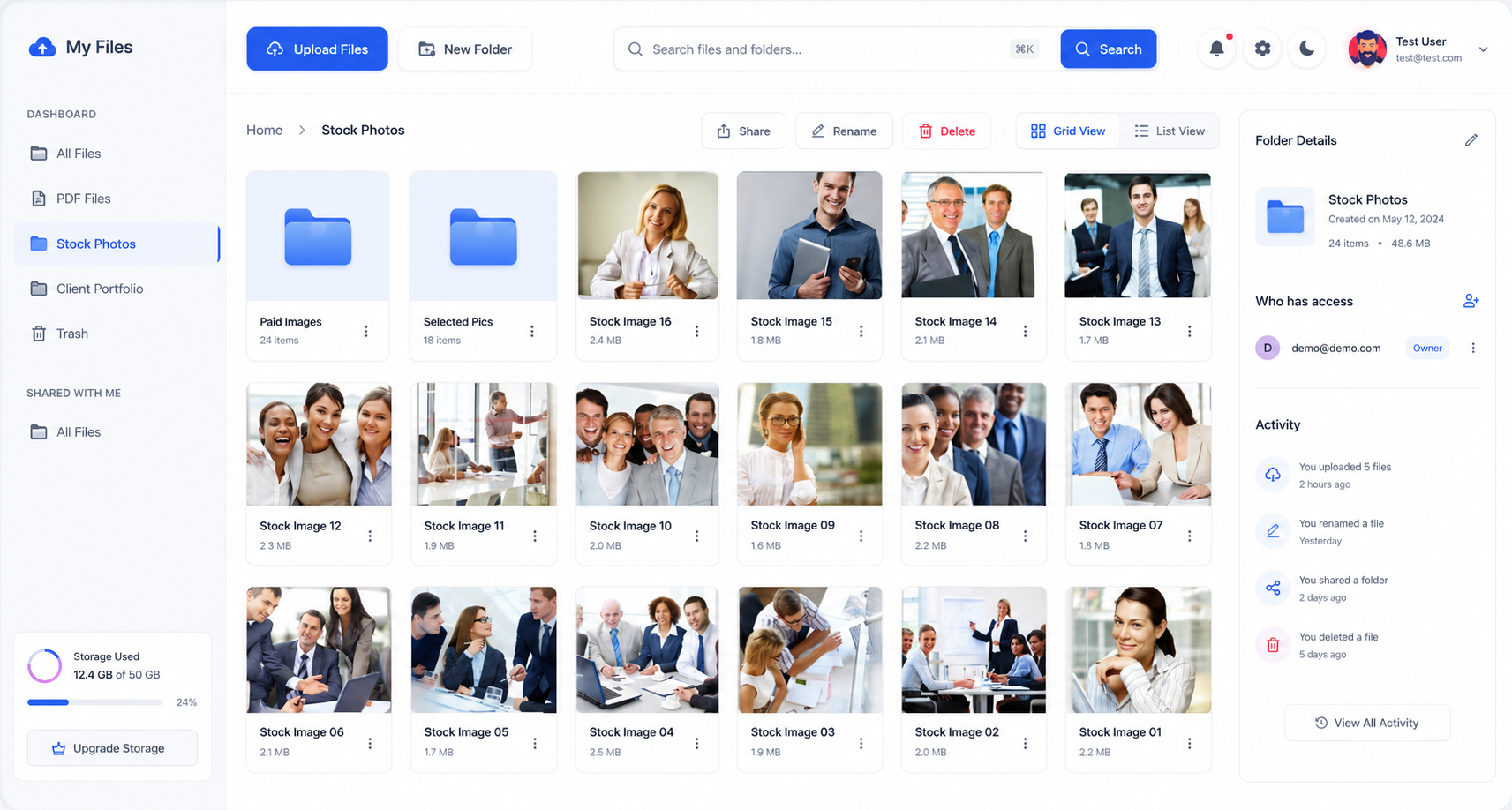
User Private Files PRO is a comprehensive document management, secure file sharing, and client portal plugin for WordPress. It transforms your website into a secure, Dropbox-style document hub where every registered user gets a personal, isolated file directory.
In addition to advanced folder trees, drag-and-drop uploads, role-based sharing, and private download links, User Private Files PRO features a built-in PDF Sign add-on. This feature enables users and administrators to create reusable digital signatures and visually position them onto any uploaded PDF with real-time resizing and placement controls.
Step-by-Step Guide: How to Sign PDF Files in WordPress
Let’s walk through the complete process of setting up and using the e-signature feature in User Private Files PRO.
Step 1: Enable the "PDF Sign" Feature in Plugin Settings
Before signing documents, you need to make sure the PDF signing module is enabled on your WordPress site.
- Log into your WordPress admin dashboard.
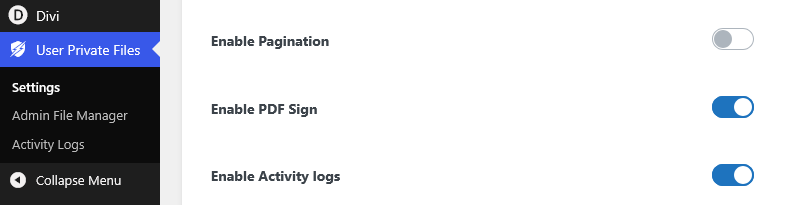
- Navigate to User Private Files > Settings.
- Under the settings tab, locate the Enable PDF Sign toggle.
- Switch the toggle to ON (checked).
- Click Save Settings at the bottom of the page.
Once enabled, User Private Files PRO automatically loads the lightweight signature pad library and displays the signature management controls in the file manager interface.
Step 2: Create Your Electronic Signature
User Private Files PRO allows each user to create and save their own personalized signature. Once saved, this signature can be reused across any document without having to recreate it each time.
- Open your frontend or backend file manager (wherever you have your file manager or the [upf_manager] shortcode published).
- Look at the top-right toolbar of the file manager header. You will see a pen icon labeled Manage Signature. Click it.
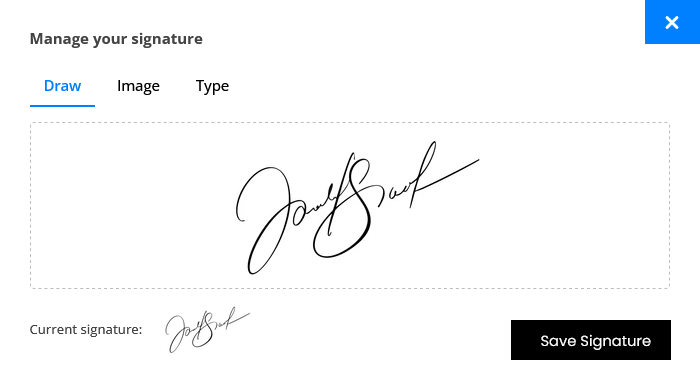
- The "Manage Your Signature" popup modal will appear on your screen.
You can create your signature using any of three flexible methods:
Method A: Draw Your Signature
Select the Draw tab. Using your mouse, trackpad, stylus, or touchscreen (if using a tablet or mobile device), draw your handwritten signature on the interactive canvas. If you make a mistake, simply click Clear to start over.
Method B: Upload a Signature Image
If you already have a high-resolution transparent PNG or JPEG image of your handwritten signature, select the Image tab. Click choose file to upload it. You will see an immediate preview of your signature image.
Method C: Type Your Signature with Elegant Fonts
If you prefer a clean, standardized cursive signature, select the Type tab:
- Type your full name into the text box (e.g., Alexander Wright).
- Choose from three professional handwriting script fonts: Dancing Script, Caveat and Pacifico. Many more stylish fonts will be added in future updates.
- The live canvas immediately renders your name in the selected script style.
Once you are satisfied with your signature, click Save Signature. Your signature is now securely saved to your user profile and ready for use.
Step 3: Open the PDF Document You Want to Sign
With your signature created, you can now sign any PDF in your repository:
- In your file manager, navigate to the folder containing your PDF.
- Click on the PDF document to open the integrated in-browser PDF viewer.
- In the top action bar of the PDF viewer, click the Sign button (marked with a signature pen icon).
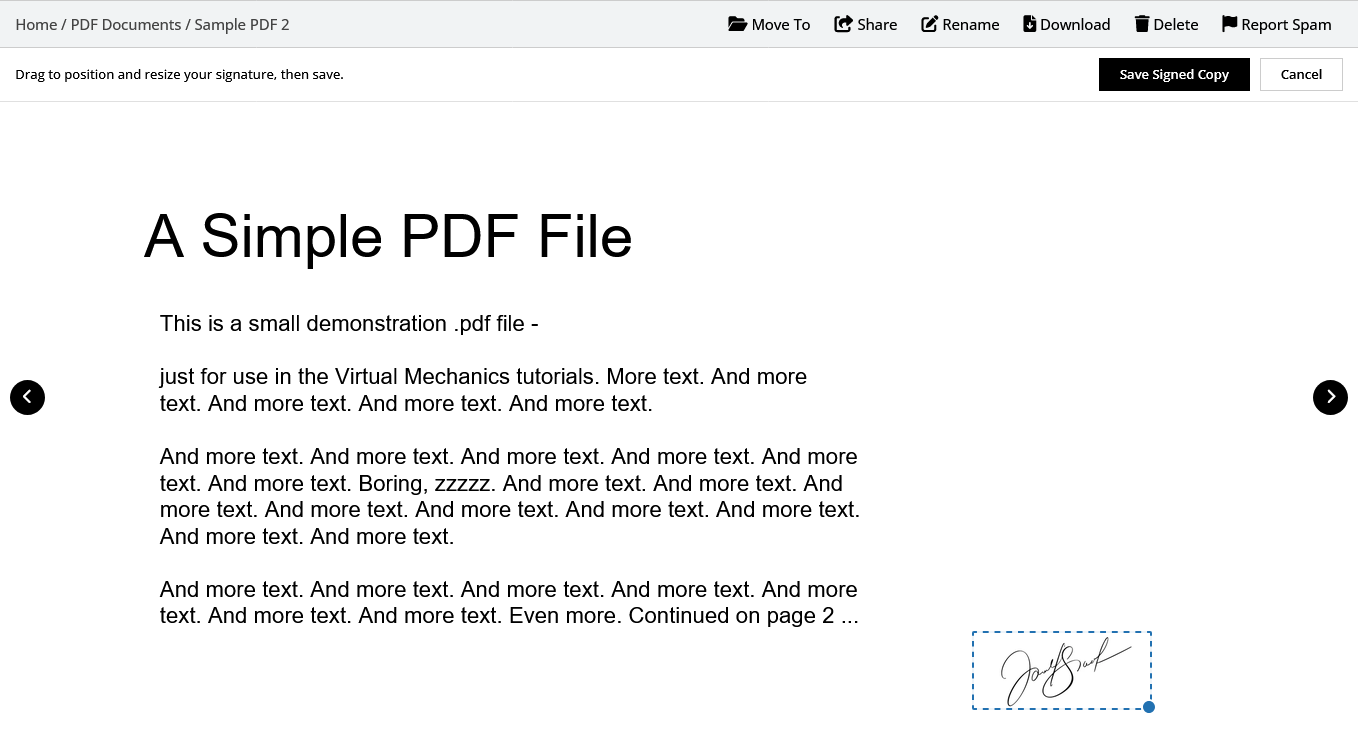
- Your saved signature will instantly appear as an interactive layer overlaid on the first page of the PDF.
Step 4: Position and Resize Your Signature
Documents come in various layouts—some forms have a tiny signature line on page 3, while full contracts have dedicated signing blocks at the bottom of the final page.
User Private Files PRO gives you complete visual control:
Drag to Move: Click and hold the signature to drag it anywhere on the document page. Place it directly above your printed name or on the specified signature line.
Resize Handles: Click and drag the corner handles of the signature box to scale it up or down so it matches the exact proportions of the document.
Navigate Pages: If the signature belongs on a later page (e.g., Page 4 of 5), use the PDF navigation arrows to move between pages and position your signature exactly where required.
Take a moment to preview the alignment and sizing before moving to the final step.
Step 5: Save the Signed Copy
Once the signature is positioned correctly:
- Click the Save Signed Copy button located in the top toolbar of the PDF viewer.
- The plugin automatically processes the PDF, embeds the visual signature onto the page, and creates a brand-new file (e.g., contract-signed.pdf).
- Both the original blank template and the new signed document remain securely organized inside your private file manager.
That’s it! In under 60 seconds, you have executed a complete e-signature workflow directly inside WordPress without relying on third-party software, printers, or external file converters.
Who Can Benefit from In-Browser PDF Signing in WordPress?
Integrating an e-signature workflow into your WordPress site is ideal for any business that regularly exchanges agreements, paperwork, and approvals:
Agencies & Freelancers: Collect signatures on project scopes, change orders, design briefs, and retainer agreements before kicking off client work.
Accounting & Bookkeeping Practices: Allow clients to quickly approve year-end financial summaries, tax authorizations, and engagement letters directly inside their secure client portal .
Legal Firms & Consultants: Enable clients to review and sign confidential settlement memos, retainers, and NDAs within an encrypted, authenticated environment.
Property Managers & Landlords: Facilitate the signing of lease renewals, property inspection sign-offs, and maintenance authorization forms.
Internal HR & Team Workflows: Give employees an easy way to sign employee handbooks, expense approvals, and performance reviews inside an internal company intranet.
Important Note on Electronic Signature Compliance
The e-signature feature in User Private Files PRO adds a visual electronic signature to a PDF document.
In many everyday business contexts (such as design sign-offs, internal company approvals, informal contracts, and service acknowledgments), standard electronic signatures are widely accepted.
However, legal requirements for e-signatures vary by country, state, and document type (such as the ESIGN Act and UETA in the United States, or eIDAS in the European Union). Certain high-stakes legal documents, government filings, or real estate deeds may require cryptographic digital certificates, formal tamper-evident audit trails, or identity verification.
Always consult your legal counsel or industry regulations to ensure a visual electronic signature meets the specific compliance criteria for your particular use case.
Frequently Asked Questions (FAQ)
Can clients sign PDFs from their mobile phones or tablets?
Yes! The signature pad canvas supports touch events. Clients logging into your frontend file manager on an iPad, iPhone, or Android tablet can easily draw their signature using their finger or a stylus.
Does signing a PDF replace the original document?
No. User Private Files PRO uses a non-destructive workflow. When you click Save Signed Copy, the plugin saves a new signed instance of the PDF, keeping your original unsigned file intact for your records.
Can clients sign documents without accessing the WordPress admin dashboard?
Absolutely. User Private Files PRO is designed specifically around frontend client portals. By embedding the [upf_manager] shortcode on a standard page, clients log in, browse files, create signatures, and sign PDFs entirely from the frontend of your site.
Can I share the signed PDF directly with other users?
Yes. Once the signed PDF is generated, you can use the built-in sharing features of User Private Files PRO to share the file with specific users by email or assign access to entire user roles.
Streamline Your Document Workflow Today
Manual document signing slows down your sales cycle, frustrates your clients, and introduces unnecessary security vulnerabilities. By bringing PDF signing directly into your WordPress file management system, you can offer a seamless, professional experience that saves hours of administrative time every week.
Ready to add e-signatures and private file management to your WordPress site?
Get User Private Files PRO Today and transform the way your business manages documents.