
If you run a service business—whether as a creative agency, freelance consultant, accountant, lawyer, or property manager, exchanging files with clients is part of your daily routine.
Unfortunately, for most businesses, that exchange is messy and fragmented:
- Critical contracts and invoices get buried in endless email threads.
- Clients lose shared Dropbox or Google Drive links.
- Confidential financial data sits in unencrypted inbox attachments.
- Third-party portal platforms (like SuiteDash, Copilot, or HoneyBook) charge between $50 and $200 every single month just to host your files.
Here is the good news: if you already have a WordPress website, you already own the foundation for a professional, self-hosted client portal.
By installing the right client portal wordpress plugin, you can turn your WordPress site into a fortified, branded document vault where every client logs in to their own private dashboard to upload documents, review deliverables, sign PDFs, and track project files.
In this comprehensive guide, we will unpack what a true client portal requires, evaluate what makes the best client portal plugin for wordpress, and walk step-by-step through setting up a secure wordpress client portal in under fifteen minutes.
What Exactly Is a WordPress Client Portal?
A wordpress client portal (often called a customer portal wordpress) is a password-protected, private section of your website dedicated exclusively to individual clients.
Unlike a public blog or a generic membership site, a client portal is built around strict individual isolation:
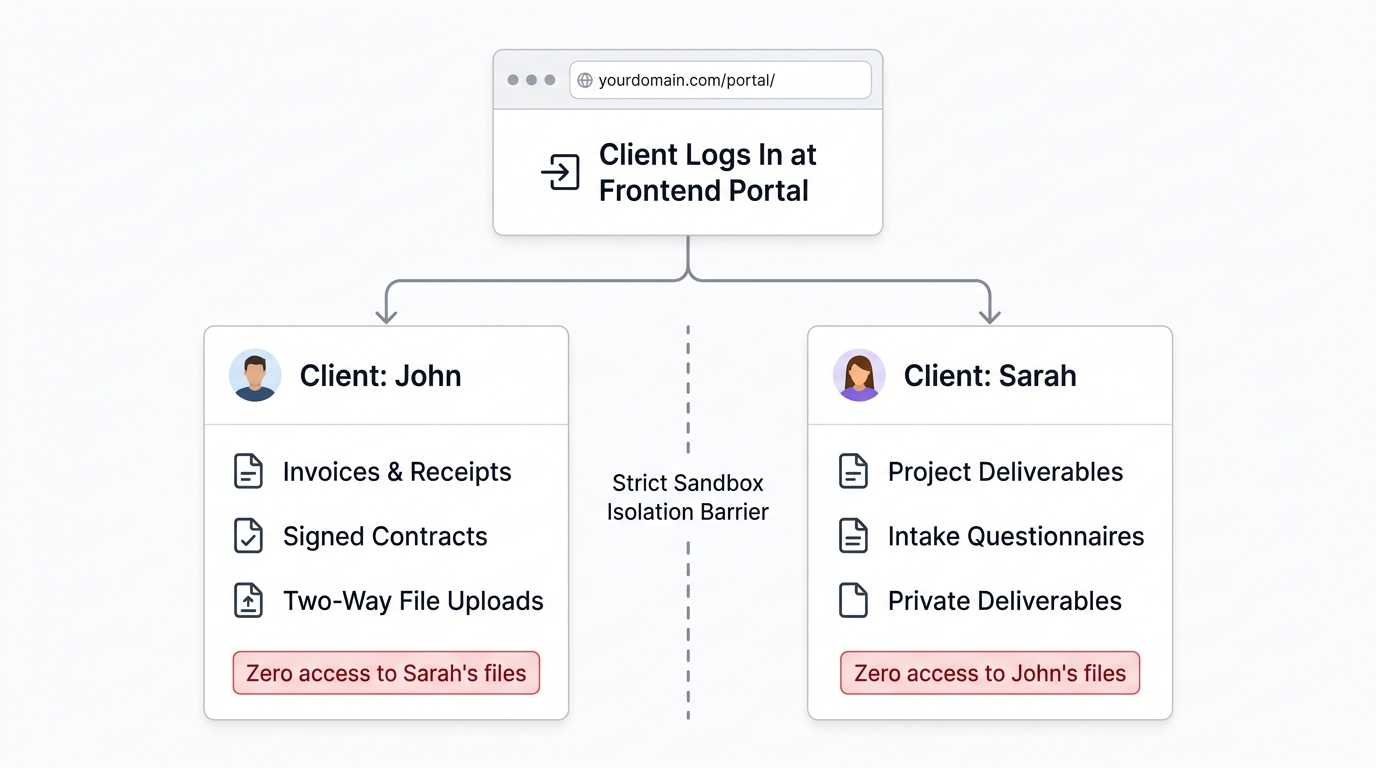
When Client John logs into your website, he only sees John's assigned folder, his project assets, and his invoices. He cannot see, search, or even detect the existence of Client Sarah’s folder.
Meanwhile, your administrative team enjoys central oversight—viewing, managing, and uploading documents to every client's folder from a single, organized dashboard.
5 Must-Have Features in a WordPress Client Portal Plugin
Not all plugins marketed as "portals" are created equal. Many generic membership plugins simply restrict access to blog posts or static pages, completely lacking individual file sandboxes.
When choosing the best client portal plugin for wordpress, make sure it includes these five essential capabilities:
1. Complete User Sandbox Isolation
Security is non-negotiable. If Client A can guess a URL or manipulate a search parameter to view Client B's tax return or legal brief, your business faces catastrophic liability. The plugin must isolate every client’s assets at the database and server level.
2. A Dedicated Frontend Interface (No wp-admin)
Your clients should never see the complex WordPress administrative backend (wp-admin). An intuitive client portal operates 100% on the frontend of your website, featuring clean navigation, simple drag-and-drop file uploaders, and instant file previews.
3. Bidirectional (Two-Way) File Sharing
A real client workflow requires two-way interaction. Your team needs to share final deliverables, reports, and invoices with clients. Simultaneously, clients must be able to upload raw assets, signed forms, receipts, and project feedback directly into their assigned folder.
4. Server-Level Direct Link Blocking
Default WordPress media uploads are public by default. If a plugin uploads client documents into standard media folders without server protection, anyone with the direct URL can download the file. A secure portal must block direct URL downloads and enforce session checks before releasing any document.
(Read our deep dive on why default WordPress media uploads aren't private to see how this works).
5. Seamless Document Workflows (E-Signatures & Notifications)
Instead of forcing clients to download PDFs, open external software, sign them, and email them back, modern portals allow clients to sign PDF documents directly in their browser and receive automated notifications whenever new files are uploaded.
Why User Private Files PRO Is the Best Client Portal Plugin for WordPress
While standalone SaaS tools lock your data inside proprietary platforms and charge per-client fees, User Private Files PRO transforms your existing WordPress website into a private cloud storage hub that rivals Dropbox or Google Drive.
Here is why agencies, CPAs, legal firms, and consultants prefer User Private Files PRO:
| Feature / Consideration | Third-Party SaaS | Generic Membership Plugins | User Private Files PRO |
|---|---|---|---|
| Software Cost | $50–$200+/month | $150–$300/year | Affordable License |
| Data Ownership | Third-Party Cloud | WordPress Database | 100% Self-Hosted |
| File Sandboxing | Yes | ❌ No | ✅ Yes (Isolated Vaults) |
| Direct URL Protection | Proprietary | ❌ No | ✅ Yes (Server Rewrites) |
| Frontend Dashboard | Subdomain | Mixed | ✅ Clean [upf_manager] View |
| In-Browser PDF Signing | Costly Addon | ❌ No | ✅ Built-in PDF Sign |
By running your client portal for wordpress with User Private Files you retain 100% ownership of your client relationships, branding, and data without recurring per-seat fees.
Step-by-Step Tutorial: Setting Up Your WordPress Client Portal
Let’s walk through the exact setup process to build your own functional client portal in under fifteen minutes.
Step 1: Install and Activate User Private Files PRO
- Log in to your WordPress administrative dashboard.
- Navigate to Plugins > Add New > Upload Plugin.
- Choose the user-private-files-pro.zip file downloaded from your account dashboard.
- Click Install Now, then click Activate Plugin.
- Go to User Private Files > License Settings and paste your license key to enable automatic updates.
Step 2: Publish Your Frontend Client Portal Page
Unlike complex software that requires hours of configuration, User Private Files PRO provides a clean frontend file manager via a simple shortcode:
- In your WordPress menu, go to Pages > Add New.
- Give your page a professional title, such as Client Portal, Client Dashboard, or My Documents.
- In your page builder (Gutenberg Block Editor, Elementor, Divi, or Beaver Builder), insert a Shortcode module.
- Enter the primary portal shortcode: [upf_manager]
- Set the page template to Full Width so the file manager has ample horizontal room to display folder trees, file previews, and search filters.
- Click Publish.
When any logged-in client navigates to this URL, they will immediately see their personal, secure document manager. If a non-logged-in visitor lands on the page, the plugin displays a clean login prompt.
Step 3: Configure Role Permissions & Client Privileges
To maintain a safe portal environment, you want to specify exactly what your clients can and cannot do:
- Navigate to User Private Files > Settings.
- Click on the Permissions / Roles tab.
- Select the user role assigned to your clients (e.g., Customer, Subscriber, or a custom Client role created with a free role editor plugin).
- Configure permissions:
Upload Access: Enabled (allows clients to upload receipts, contracts, and briefs).
Create Folders: Enabled or Disabled based on preference.
Delete Files: Disabled (strongly recommended so clients cannot accidentally delete critical historical deliverables or invoices). - Click Save Changes.
Step 4: Automate Default Client Folders (Premade Folders)
Creating manual folder structures for every new onboarding client quickly becomes tedious. User Private Files PRO solves this through its automated Premade Folders feature:
📁 New Client Registers / Account Created
├── 📁 01_Onboarding_Documents
├── 📁 02_Contracts_and_Agreements
├── 📁 03_Invoices_and_Receipts
└── 📁 04_Project_Deliverables
- Navigate to User Private Files > Premade Folders.
- Define the folder structure you want every client to receive automatically (e.g., /Contracts, /Invoices, /Deliverables, /Uploads).
- Save your template.
Now, whenever a new client account is registered or created, the plugin automatically provisions this organized folder hierarchy inside their private vault!
Step 5: White-Label and Brand Your Portal
Deliver a cohesive, high-end experience that matches your corporate branding:
- Navigate to User Private Files > Customizer.
- Upload your agency or company logo to replace the default header emblem.
- Adjust your primary and secondary color accents (buttons, navigation tabs, hover states) to match your corporate style guide.
- Set custom background styling and typography preferences.
In minutes, your client portal wordpress plugin setup looks like a proprietary, custom-built enterprise application that reinforces client trust.
Real-World Use Cases: Who Needs a WordPress Client Portal?
A private customer portal adapts seamlessly across virtually every professional service sector:
Creative Agencies & Web Studios
- The Workflow: Agencies share high-resolution design proofs, brand guidelines, and staging exports with clients.
- The Benefit: Eliminates broken WeTransfer links and prevents oversized email attachments from bouncing.
Accounting, CPA, and Tax Practices
- The Workflow: Clients upload W-2s, 1099s, bank statements, and receipts; accountants deliver completed tax returns and annual audits.
- The Benefit: Keeps confidential financial assets shielded by server-level authentication and encrypted storage paths.
Law Firms & Legal Advisors
- The Workflow: Securely exchange non-disclosure agreements, litigation briefs, settlement terms, and corporate bylaws.
- The Benefit: Clients can review and execute agreements using the integrated in-browser PDF e-signature tool without leaving your portal.
Healthcare & Wellness Providers
- The Workflow: Share lab results, personalized wellness plans, dietary protocols, and patient intake forms.
- The Benefit: Maintains strict patient data segregation where no client can ever access another patient's records.
Real Estate & Property Management
- The Workflow: Landlords and property managers exchange lease agreements, move-in inspection checklists, repair invoices, and tenant documentation.
- The Benefit: Centralizes years of tenant records within neatly organized historical directories.
Frequently Asked Questions (FAQ)
Can clients see or access the WordPress admin dashboard?
No. User Private Files PRO is designed specifically for frontend operation. Clients log in, browse files, upload assets, and sign documents entirely through the frontend page containing the [upf_manager] shortcode.
Does User Private Files work with Elementor and Divi?
Yes! The plugin is fully compatible with Divi, Elementor, Avada, Beaver Builder, and the native WordPress Gutenberg editor. Simply drop the [upf_manager] shortcode into any standard shortcode or text module.
How many clients and files can I host on my portal?
There are no artificial software limits on the number of clients, files, or folders you can manage. Storage capacity and maximum upload file sizes depend solely on your web hosting plan.
Can I charge clients for access to their portal?
Yes. Because User Private Files integrates seamlessly with WordPress user accounts, you can combine it with WooCommerce or a membership checkout plugin to sell portal access, retainer subscriptions, or VIP document vaults.
Conclusion: Upgrade Your Client Experience Today
Managing client files through scattered email attachments and shared cloud drives makes your business look disorganized and exposes confidential data to dangerous security risks.
Building a fortified wordpress client portal gives your clients a sleek, frictionless hub to collaborate with your team while preserving 100% ownership of your data and eliminating expensive third-party SaaS subscriptions.
In under fifteen minutes, you can launch a branded client portal that reinforces your professionalism and keeps client documents safe.
Ready to Build Your WordPress Client Portal?
Give your clients the private, professional document vault they deserve.